Screen sharing for
pairing, tutoring, and demos
Share your screen without turning a quick session into a full video meeting. No camera tiles, no install for viewers, and fast LAN mode for same-WiFi rooms.
Hosts sign in to create rooms. Joining a room does not require an account.
Why this feels different
A room for sharing your screen.Not a camera meeting you have to manage.
Laptop Party keeps the front door simple: create a room, share a code, join in browser. The product is strongest when the screen is the focus and everyone wants less meeting UI.
Host flow stays short
Sign in to create a room, choose LAN/WiFi or Remote, and start sharing.
Guest flow is lightweight
Guests use a code + name. No account is required to join.
Room type is explicit
4-digit LAN rooms for same Wi-Fi. 8-character remote rooms for internet sessions.
Host
sign inCreate room
Pick LAN/WiFi or Remote, then choose what screen/window/tab to share.
Shared code
Guest
no accountJoin in browser
Enter code + name, then join from the browser without downloading a client.
Session route
Designed for quick starts, not meeting setupCreate room
Host chooses LAN or Remote
Share code
Paste in Slack / Discord / email
Guest joins
Code + name in browser
Best when
The screen is the subject and everyone wants less meeting ceremony.
Not meant for
Camera-grid meetings, breakout rooms, and heavy meeting moderation tools.
Positioning
Built for screen-first collaboration, not camera-first meetings
Laptop Party works best when the goal is sharing a screen quickly and staying focused on the work.
Pair programming
Share a coding window fast without turning on cameras or sending a meeting link with a full video UI.
Tutoring & teaching
Students join with a code and name so you can start teaching immediately, especially on classroom Wi-Fi.
In-room demos
LAN mode is a better fit for same-room sessions where low latency matters more than meeting features.
Product-first walkthrough
Show the session workflow, not abstract SaaS graphics
Laptop Party stands out when people immediately understand how rooms are created, shared, and joined.
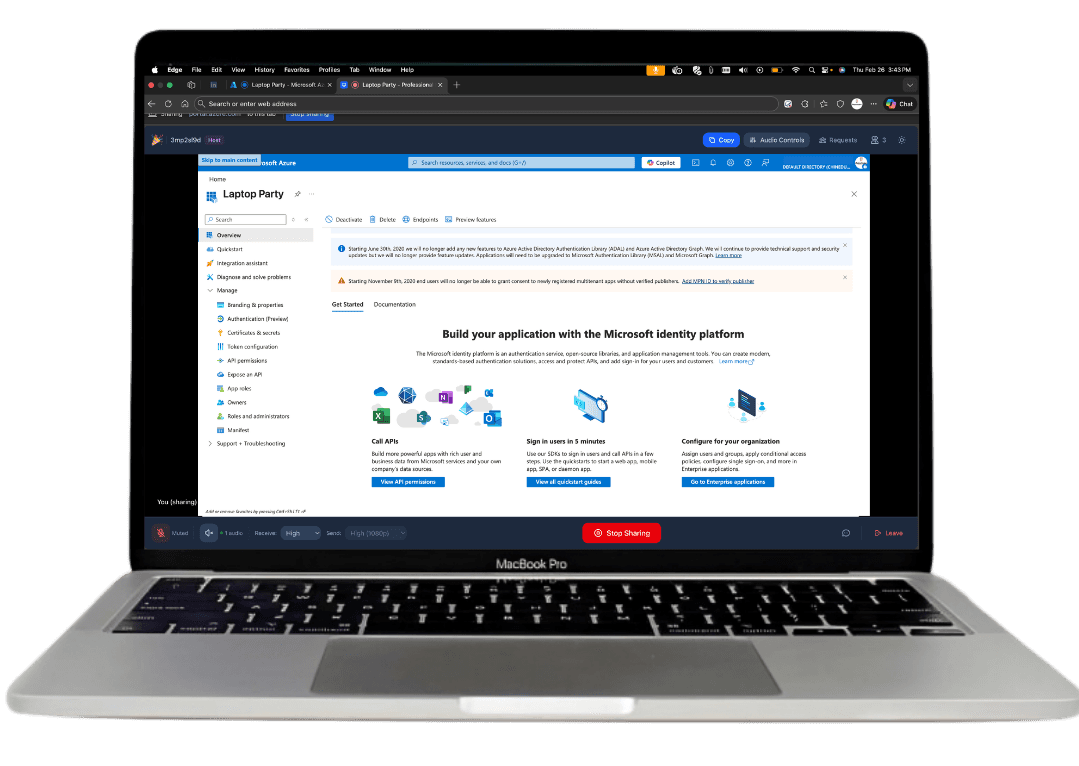
What makes it different from a video meeting
The experience is optimized for screen sharing and collaboration flow, not camera grids, meeting rituals, or heavyweight setup.
Screen-first collaboration
Use Laptop Party when the screen is the point of the session, not faces on camera.
Presenter controls what is shared
Share your full screen, a single window, or a browser tab using the browser picker.
Built around quick sessions
Start a room, share a code, and get people in without walking them through installs.
What you send vs what they do
This is the part people need to understand within a few seconds on the homepage.
What you send
Slack / Chat message
Join my Laptop Party room
What they do
No download. No account required to join.
LAN vs Remote room types
A concrete distinction that helps users self-select the right mode quickly.
Use when everyone is on the same Wi-Fi network.
Use when some participants are not on the same Wi-Fi network.
Create a room
Choose LAN/WiFi if everyone is on the same network, or Remote for internet sessions.
Send the code
Share a 4-digit LAN code or 8-character remote code in chat, email, or Slack.
Guest joins in browser
They enter the code and name, then start watching without installing anything.
How it works
Start and join a session without setup friction
A clear join flow helps people trust the product quickly and understand when to use LAN vs Remote.
Step 1
Host starts a room
Sign in once, pick LAN/WiFi or Remote, and get a room code.
Step 2
Share the code
Paste the code into Slack, Discord, email, or any chat your team already uses.
Step 3
Guests join in browser
They enter the code and their name, then join from the browser.
What users should understand immediately
- Joining is lightweight: code + name in browser.
- LAN mode exists for same-WiFi, low-latency situations.
- It is intentionally simpler than a full meeting platform.
Quick facts
Why teams reach for Laptop Party
These examples align with the screen-first use cases highlighted above: pairing, tutoring, and focused demos.
“Finally, a screen sharing tool that doesn't force me to turn on my camera. Perfect for pair programming sessions where the code should be the focus, not our faces.”
“I use Laptop Party for all my tutoring sessions. Students can see my screen clearly, and the LAN mode means zero lag when we're in the same room.”
“No more 'can you see my screen?' moments. It just works, instantly. The best part? No one has to worry about their messy room being on camera.”
Ready to try it
Start a screen-sharing room without the video-meeting overhead
Hosts sign in to create rooms. Guests join with a code and name from the browser.